RATIO USER MANUAL
iPhone app: getting started
The Ratio app for iPhone and iPad uses the same data as the web: same workspaces, same transactions, same encryption. Data is decrypted only on your device and the server cannot read it. This guide explains how to sign in, how data updates work and where to find each feature.
Signing in
Enter the email and password of your Ratio account. No account yet? Tap Create an account: registration and email verification follow the same rules as the web. If you were invited to a condominium, use Join a condominium.
After the first sign-in you can skip typing the password:
- Face ID: turn on Face ID in Settings. Your password and encryption keys stay in the iPhone Keychain, protected by Face ID and valid only on this device. If you change the face enrolled in iOS, turn Face ID on again with your password.
- Apple passkey: in Settings, under Apple passkey, add a passkey. Then, on the sign-in screen, enter your email and tap Use Apple passkey. An account supports one encryption passkey.
A passkey belongs to one server only: one created on the test environment does not work on www.ratio-fin.com. It also belongs to the provider that stores it. If you saved it in 1Password, choose 1Password in the iOS sheet; if iOS offers iCloud Keychain and the passkey is not there, you see Unable to use passkey. This is not an app error: try again choosing the right provider, or sign in with your password.
The main tabs
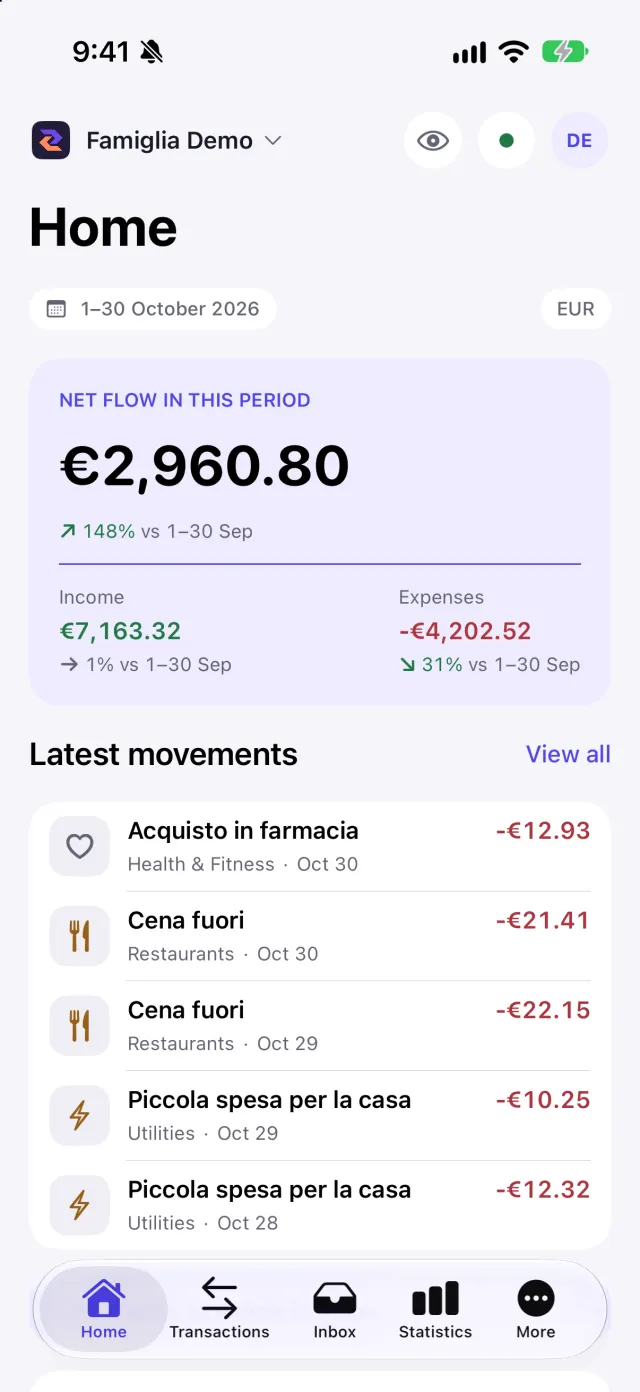
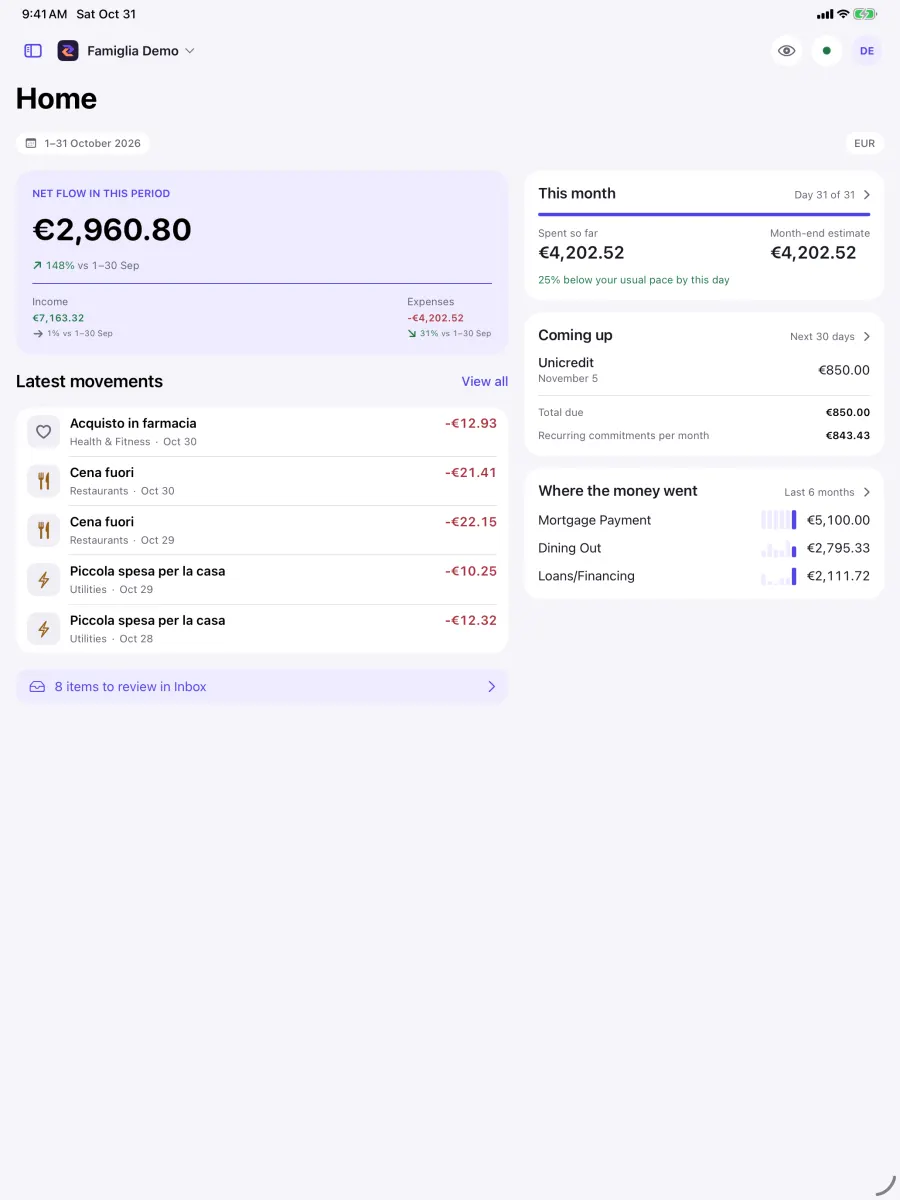
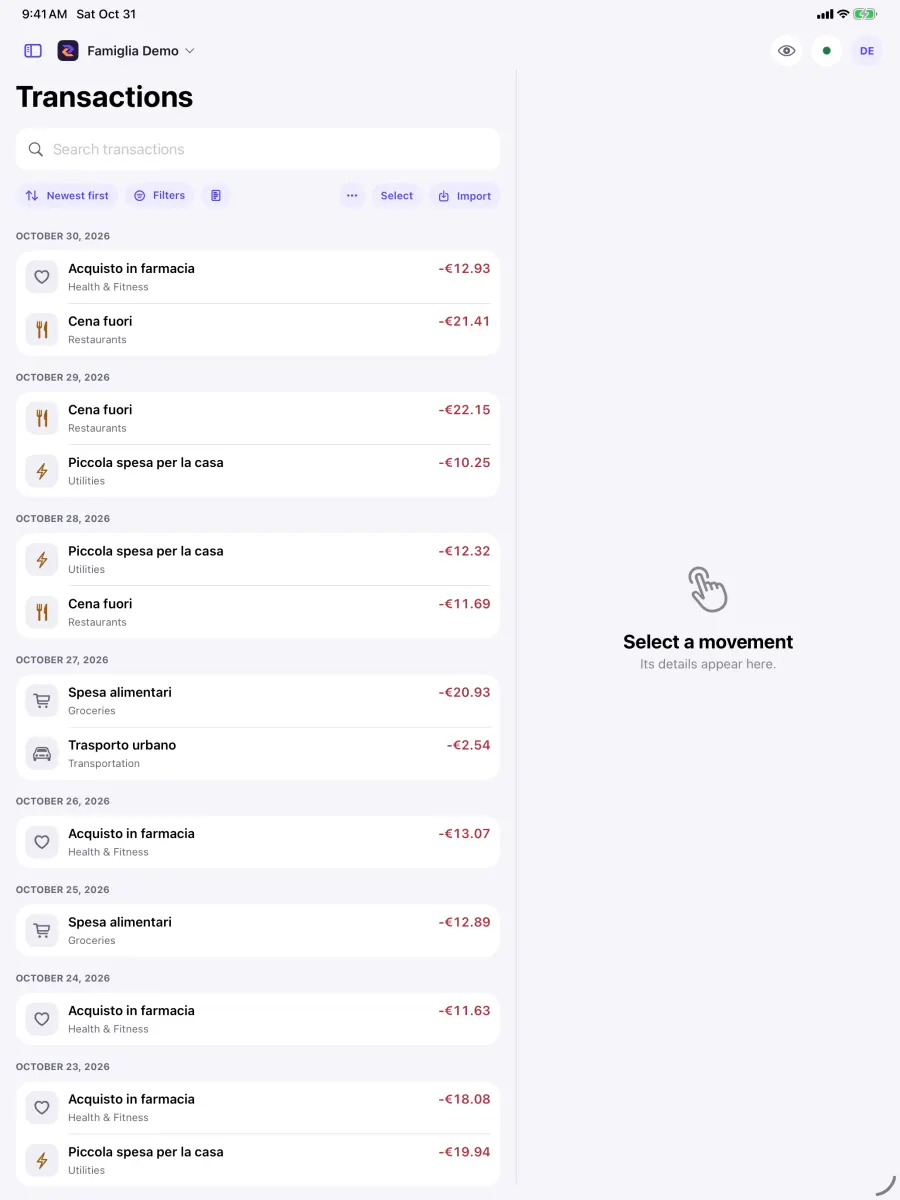
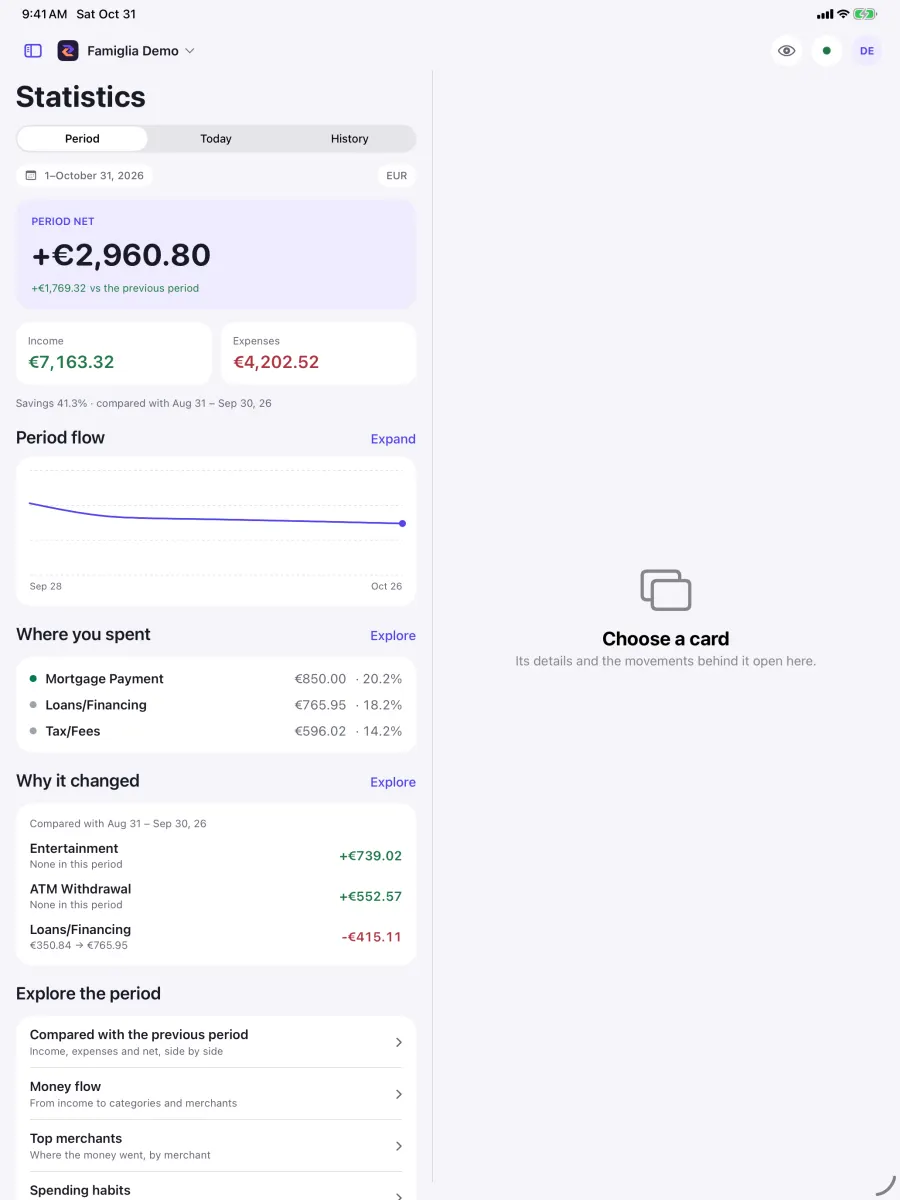
At the bottom you find Home, Transactions, Inbox, Statistics and More. More contains Assets, Report, Categories and Rules. On iPad the same entries are in the sidebar (Show or hide the sidebar).
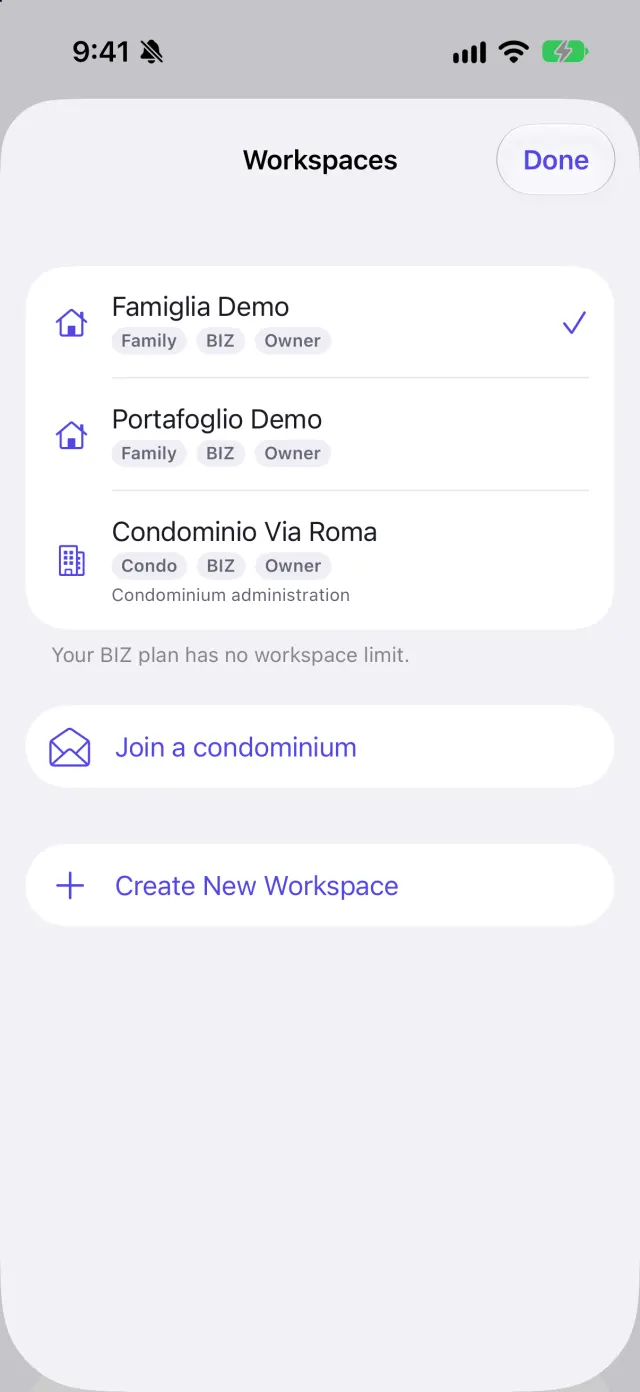
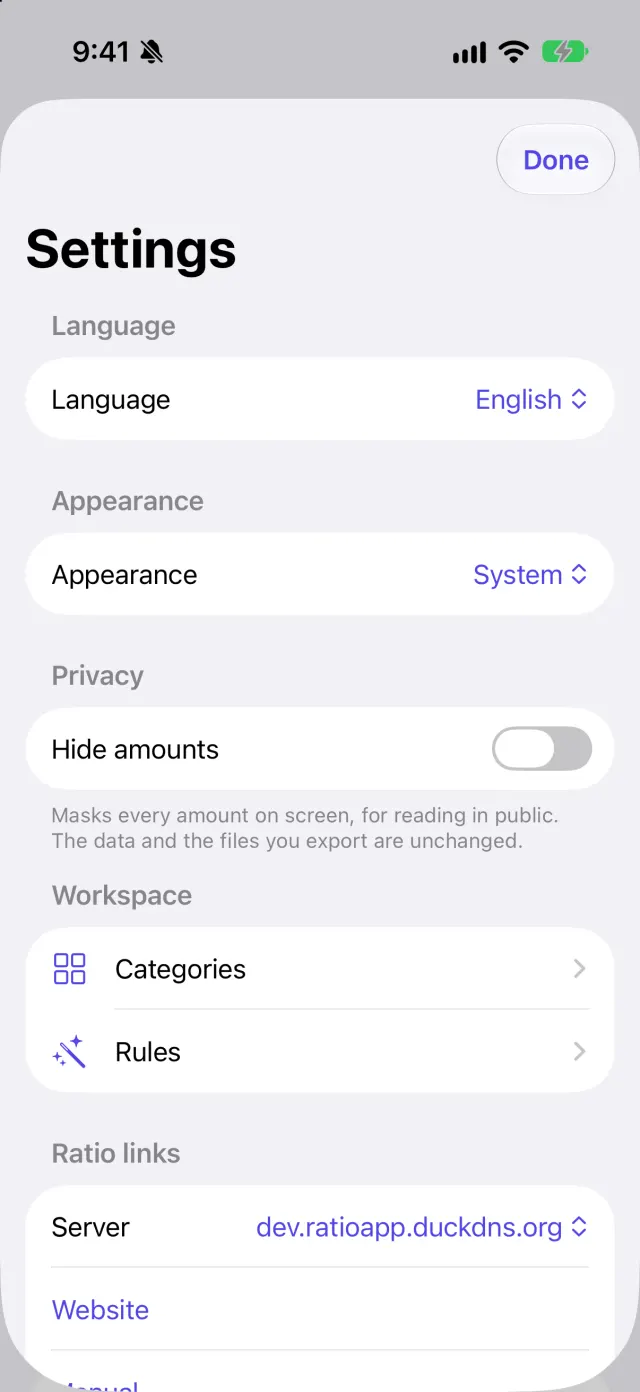
At the top is the workspace name: tap it to switch workspace, create a new one or manage the existing ones. The button with your initials opens Settings.
The synchronization dot
The dot next to the workspace tells you how fresh your data is:
- green: movements are up to date;
- main colour: an update is running. On first sign-in the app downloads your whole history and shows how many movements were downloaded out of the total;
- orange: the last update had a problem. Data already downloaded stays available.
Tap it for Refresh now and Clear cache and refresh. The second deletes the encrypted copy of your data on this iPhone and downloads it again from the server. It asks for confirmation and removes nothing from the server: use it only when something looks wrong.
On iPad
The app also runs on iPad. On wide screens the tabs become a sidebar (Show or hide the sidebar) and pages use two columns: the list on the left and the detail on the right. The condominium is designed mostly for this format, especially the assemblies.
Useful settings
- Language: System, Italiano or English.
- Appearance: System, Light or Dark.
- Privacy: hides every amount on screen, for reading in public. Data and exported files are unchanged.
- Sign out: ends the session; decrypted data leaves the app's memory.
The app does not handle purchases, plan changes or bank connections: do these on the Ratio website.
Screenshots