RATIO USER MANUAL
iPhone app: Home and Transactions
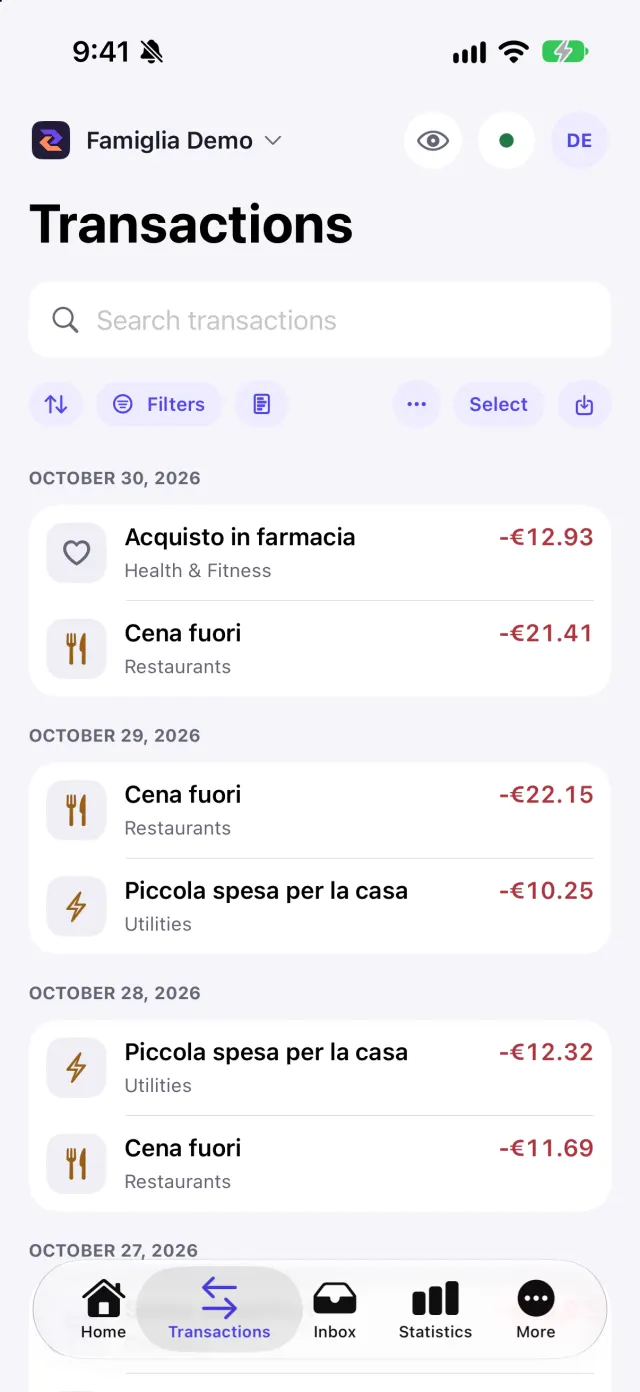
Home summarises the workspace; the Transactions tab is where you search, correct and enrich movements. It works offline on the data already downloaded.
Home
Home shows the net flow of the period, the Latest movements with a View all link and the Import transactions button. Tapping a card opens the matching page (Transactions, Inbox or Statistics).
Searching and filtering
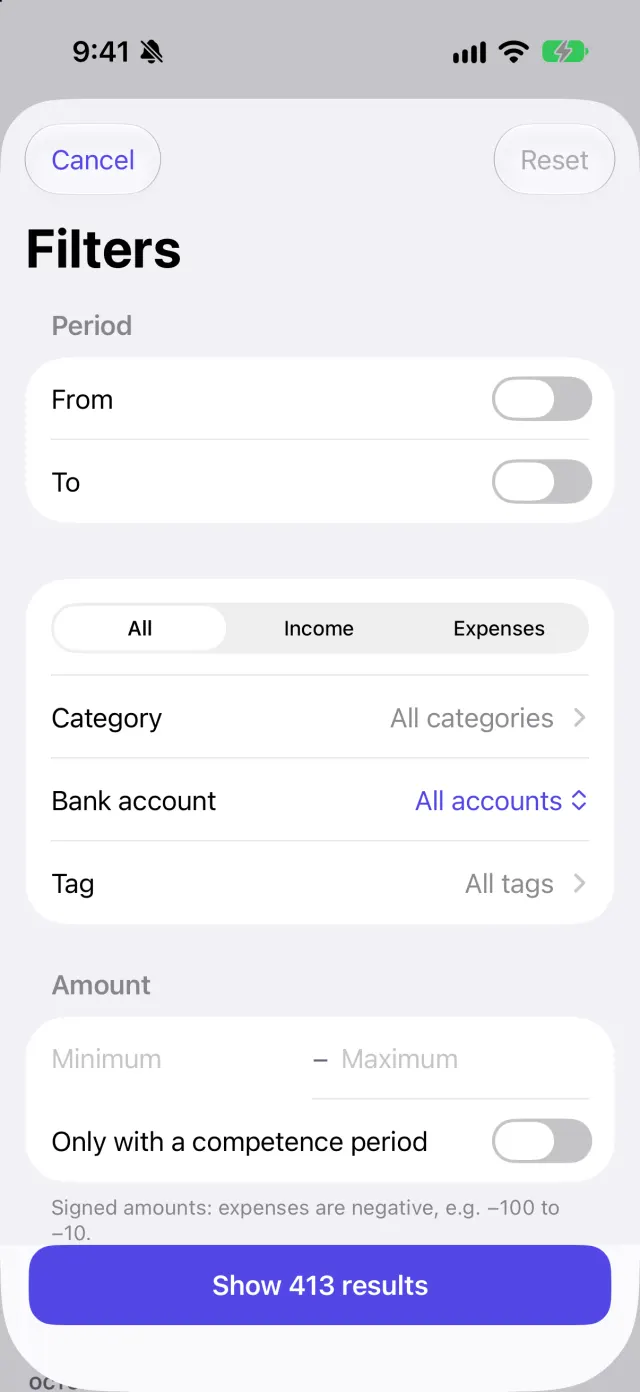
In the Transactions tab type in Search transactions: the search looks in the text of the movements. The Filters button opens a sheet with:
- period, minimum and maximum amount;
- category and tag (with Match, to choose whether one or all must match);
- bank account and account type;
- Only with a competence period.
The sheet has Reset and Done. If you no longer see the rows you expect, tap Reset filters.
Correcting a movement
Tap a row to open its detail, then Edit to change description, merchant, category, tags, notes and competence. You can link the movement to an asset (Link to asset) and mark a duplicate. Changes are encrypted on the phone before they are sent.
Actions on several movements
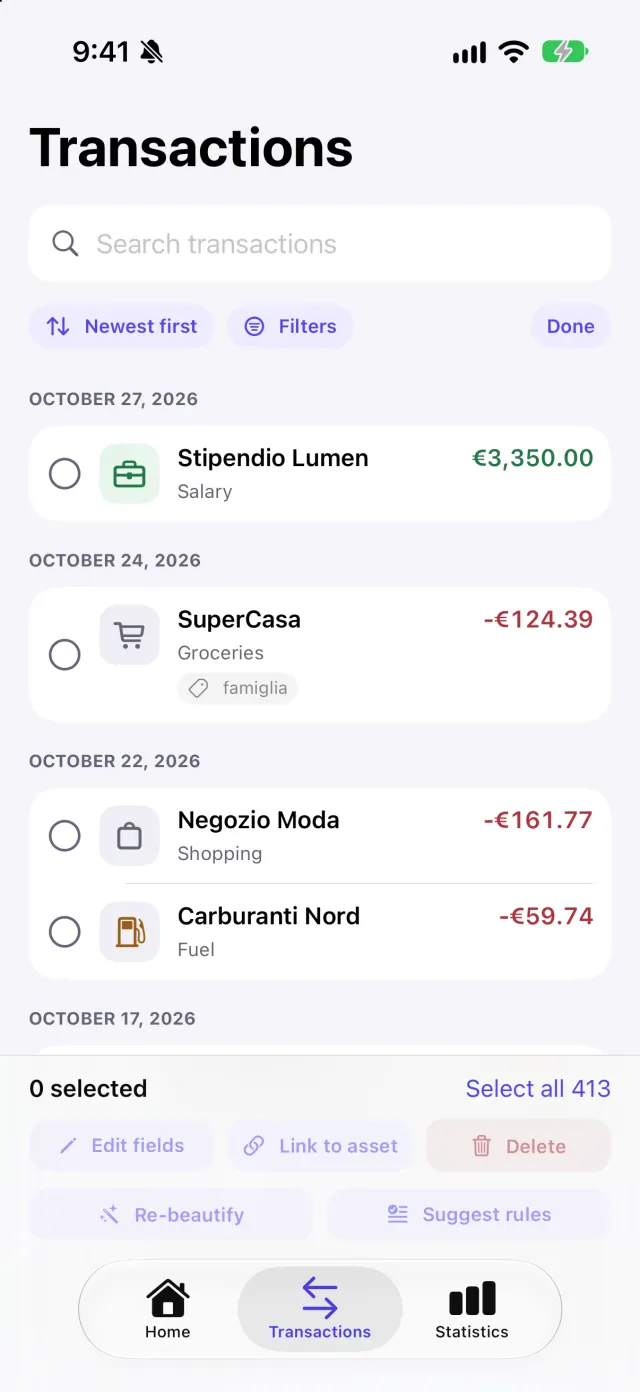
Tap Select to choose several rows; the count appears in the bottom bar and Select all takes every search result. The actions are:
- Edit fields: the same value on every row (description, merchant, account, type);
- link them to an asset or detach them;
- Re-beautify, to apply the cleanup rules;
- Suggest rules, to propose new rules from the chosen movements;
- delete.
Deleting asks for confirmation and cannot be undone.
What the app does not do
Entering data is designed around imports and corrections. For bank connections and administration use the website.
Screenshots