RATIO USER MANUAL
iPhone app: importing a file
You can import statements in CSV, XLSX, QIF and PDF. Reading happens on the phone: the file is not sent to the server and transactions are encrypted before they are saved. Start from the Import transactions button in Home or Transactions.
The steps
- Choose file: pick the file from Files, iCloud Drive or another app. The limit is 50 MB.
- Headers: if the app cannot find the header row on its own, it asks you to indicate it.
- PDF: for PDF statements the app shows the page with what it recognised; you can correct the columns before continuing. A scanned PDF with no text cannot be read: export the statement as a PDF with text, CSV or XLSX.
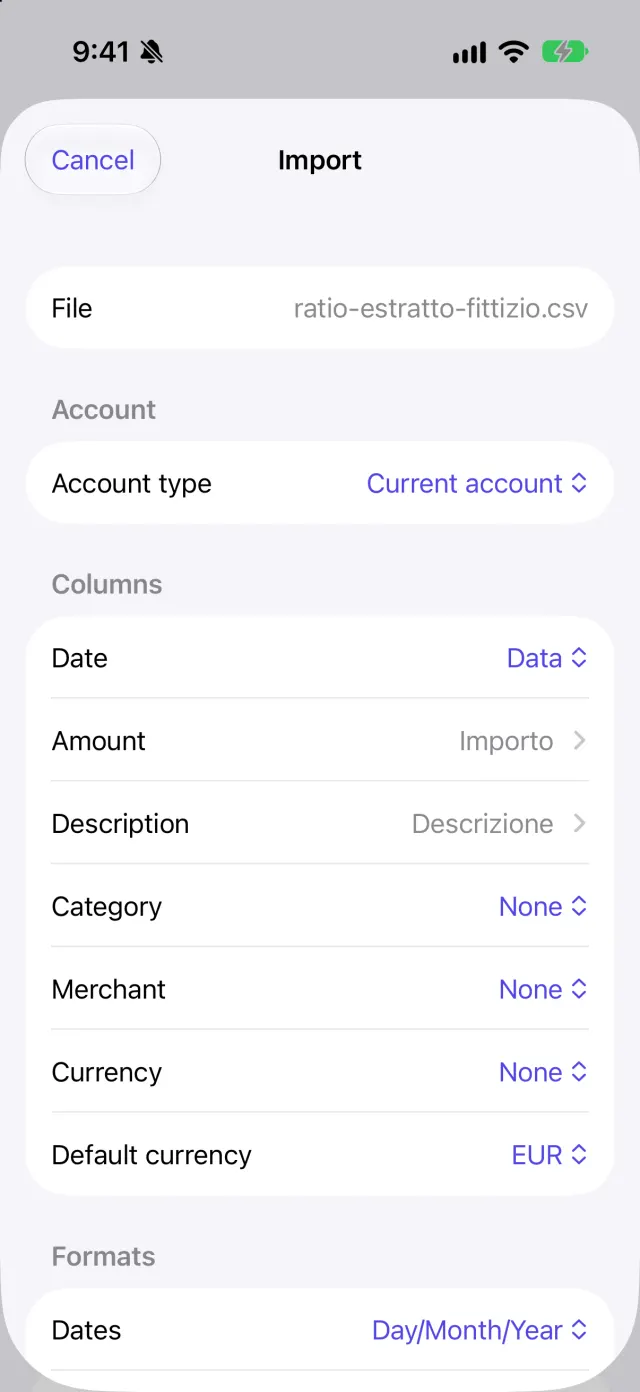
- Columns: the app proposes date, amounts, description, category, merchant and currency. You can change each choice and the date and amount formats (for example Day/Month/Year or 1.234,56). For separate money out and money in columns say which is which.
- Review: before saving you see the summary.
The review before importing
The review page contains:
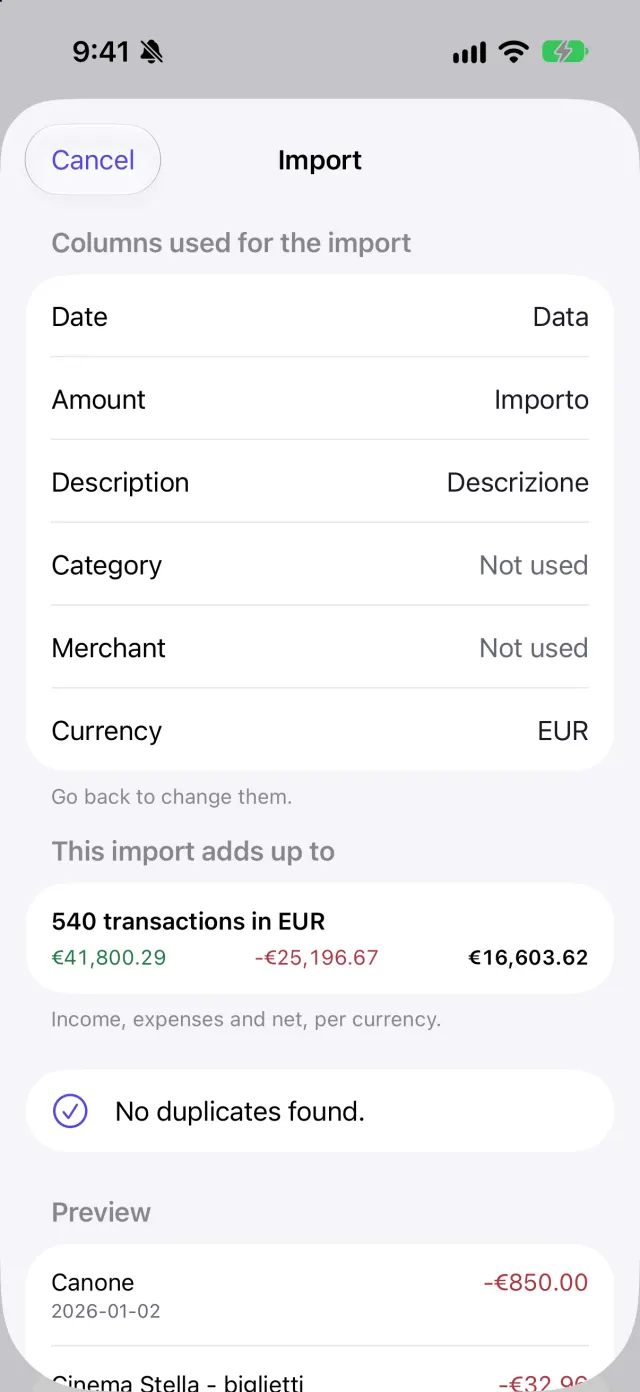
- Columns used for the import: the column chosen for date, amount, description, category, merchant and currency. A column that is not used reads Not used. To change them, go back.
- The totals of income, expenses and net per currency.
- Balance check (PDF only): checks that the rows add up to the balances printed on the statement.
- Duplicates: transactions already in the workspace are skipped. If none is a duplicate but many rows match a previous import with opposite signs, the app warns you to check the account type.
- The rows that will be skipped, with the reason: No date, Date not understood, No amount and similar. Completely blank rows are never reported: they are silently ignored.
- A preview of the first transactions.
After the import
The final page reports how many transactions were added and how many were already there. If something is wrong, Undo this import removes every transaction saved by that import and leaves the others. If the import stops halfway, run it again: transactions already saved are recognised and skipped.
In a condominium workspace, below the counts you find the note about matching instalments and suppliers, which is done from the condominium Transactions tab.
Screenshots
LightDark