RATIO USER MANUAL
iPhone app: Inbox and Rules
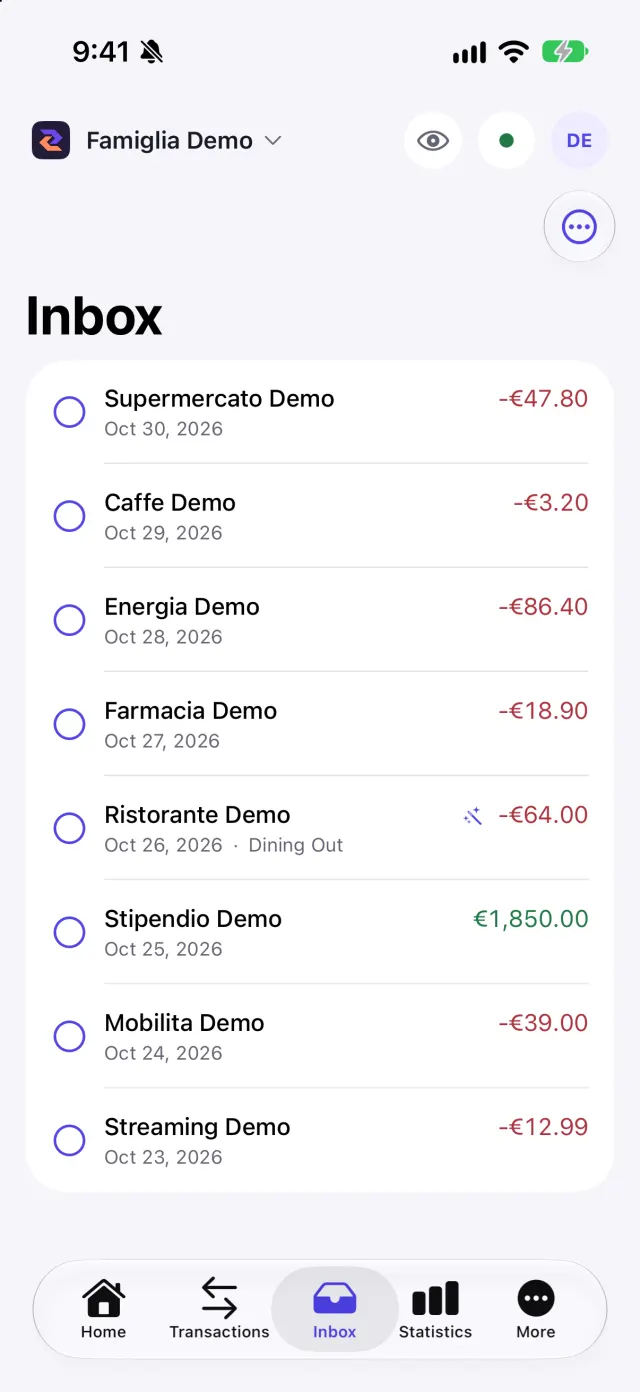
The Inbox gathers the movements waiting for confirmation (for example those brought by the bank connector). Rules decide how to categorise and clean movements. You find them in the Inbox and More tabs.
Reviewing the Inbox
Each row shows date, description and amount. You can:
- Add to transactions: confirm a single row;
- Edit before adding: change merchant, description, category, notes and investment metadata (ISIN, security, quantity, price);
- Discard: remove the row from the queue;
- select several rows with Select all and use Add selected to transactions, Discard selected, Set metadata on selected and Re-apply rules to selected.
Re-apply rules shows a preview of what would change: nothing is modified until you confirm, and rows you edited in the meantime stay as they are. Suggest cleanup rules looks at recurring prefixes in descriptions and proposes rules to create. If some rows cannot be opened on the phone, the app tells you and leaves them untouched.
Rules
In More → Rules you see the workspace rules in the order they are applied. Each rule has conditions (keywords, amount, merchant) and actions (category, description, merchant). You can create them, edit them, reorder them (Move up, Move down) and, by swiping a row, Enable, Disable or Delete them. A read-only member can export rules but not change them.
Exporting and importing rules
The menu at the top of the Rules screen exchanges rules with the web and with other workspaces, in the same JSON format:
- Share rules and Copy rules: export every rule as text;
- Paste rules: import the copied text;
- Import rules from a file: reads a .json file exported from the web or the app.
Before importing, the app shows how many rules it will add and how many entries it leaves out because they are not valid (for example no name or no actions). Imported rules are added after the existing ones, with the same relative order. If the text is not a list of rules, a message appears and nothing is created.
Screenshots