RATIO USER MANUAL
Rules: classify transactions consistently
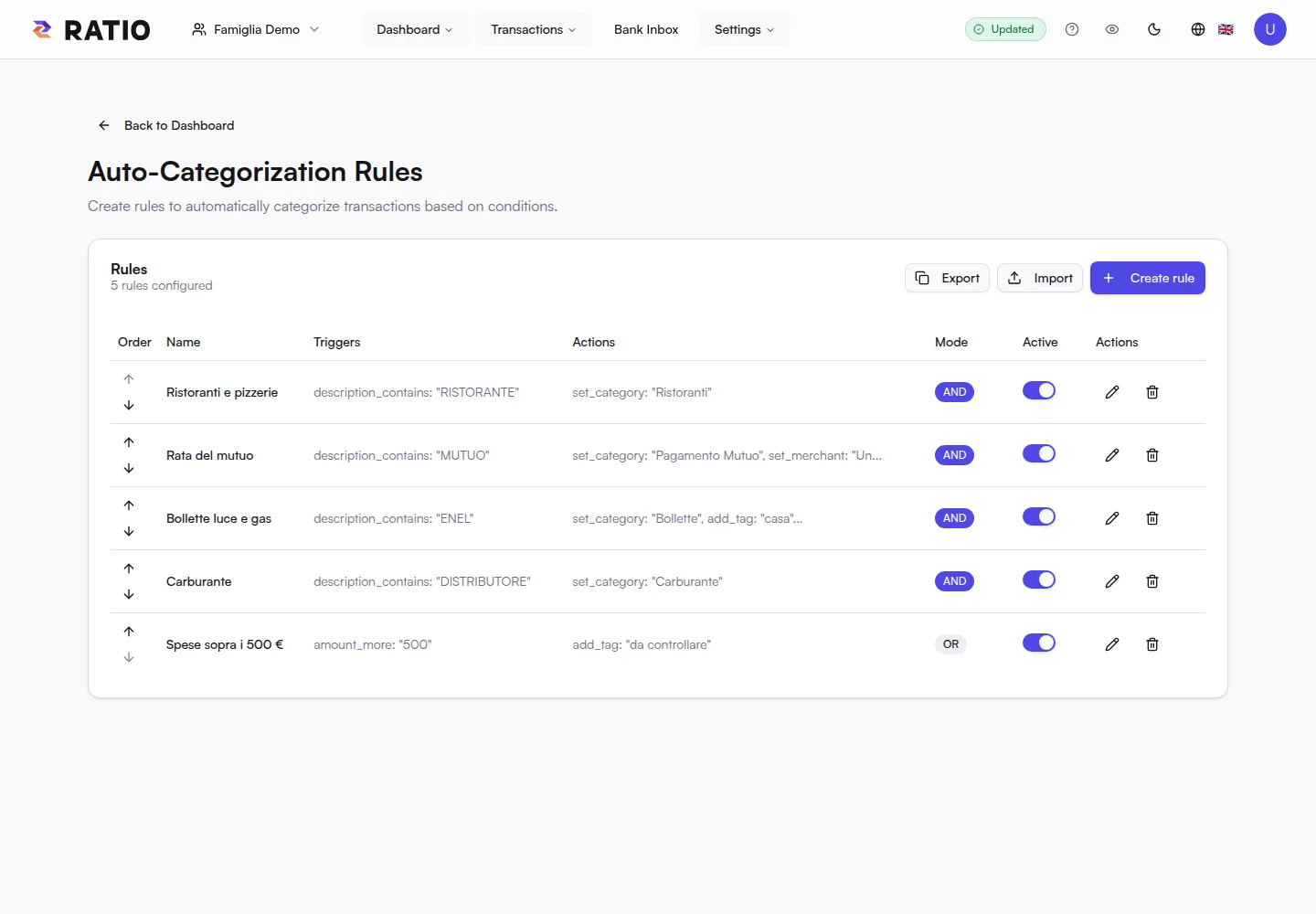
Auto-categorization rules match conditions and apply actions to transactions. They reduce repeated corrections: classify a merchant, add tags, clean a description or link an instalment to an asset. These rules run locally; they do not send transactions to a cloud AI service.
Create a rule
Open rule management from Settings. Give the rule a name that describes its purpose, such as Family mortgage payment. Add one or more conditions, then choose actions. Activate it after checking that the conditions are specific enough.
Text conditions can match part of a description or merchant. Other conditions cover category, amount, dates, months and whether a field is present. A regular expression can cover several formats but needs care: a broad pattern can match unexpected transactions. Amount triggers consider the signed value; try a representative transaction.
All conditions or any condition
In strict mode, every condition must match (AND). In non-strict mode, at least one condition must match (OR). To identify a mortgage payment by both merchant and amount, AND avoids classifying other transactions that match only one condition.
Negation reverses an individual condition. Use a few clear conditions and check both examples that should match and examples that should not.
Actions
You can set category, merchant and description, add a tag, link an asset or extract metadata. Custom categories from the workspace are available as targets. A category and a tag are different fields: choose the corresponding action.
For example, when the description contains the mortgage reference, set Mortgage Payment, add the home tag and link the mortgage asset. Avoid applying these actions to every bank transfer: add the reference that distinguishes this payment.
Order and stop processing
Active rules run in order. Several rules may match one transaction, and a later rule can change a field set by an earlier one. Put specific exceptions before general rules. Use Stop processing when a match should prevent later rules from running.
Disabling a rule prevents it from being used in future processing; it does not automatically undo changes already saved to transactions. Keep a disabled rule if you want to review it before enabling it again.
Apply and verify
Rules run in workflows that invoke them, such as import and the bank Inbox. Reapply rules in the Inbox prepares descriptions, tags and asset links before import. To process existing transactions, use Re-Beautify & Re-Categorization in Transactions; check the scope and whether overwriting existing categories is enabled before confirming.
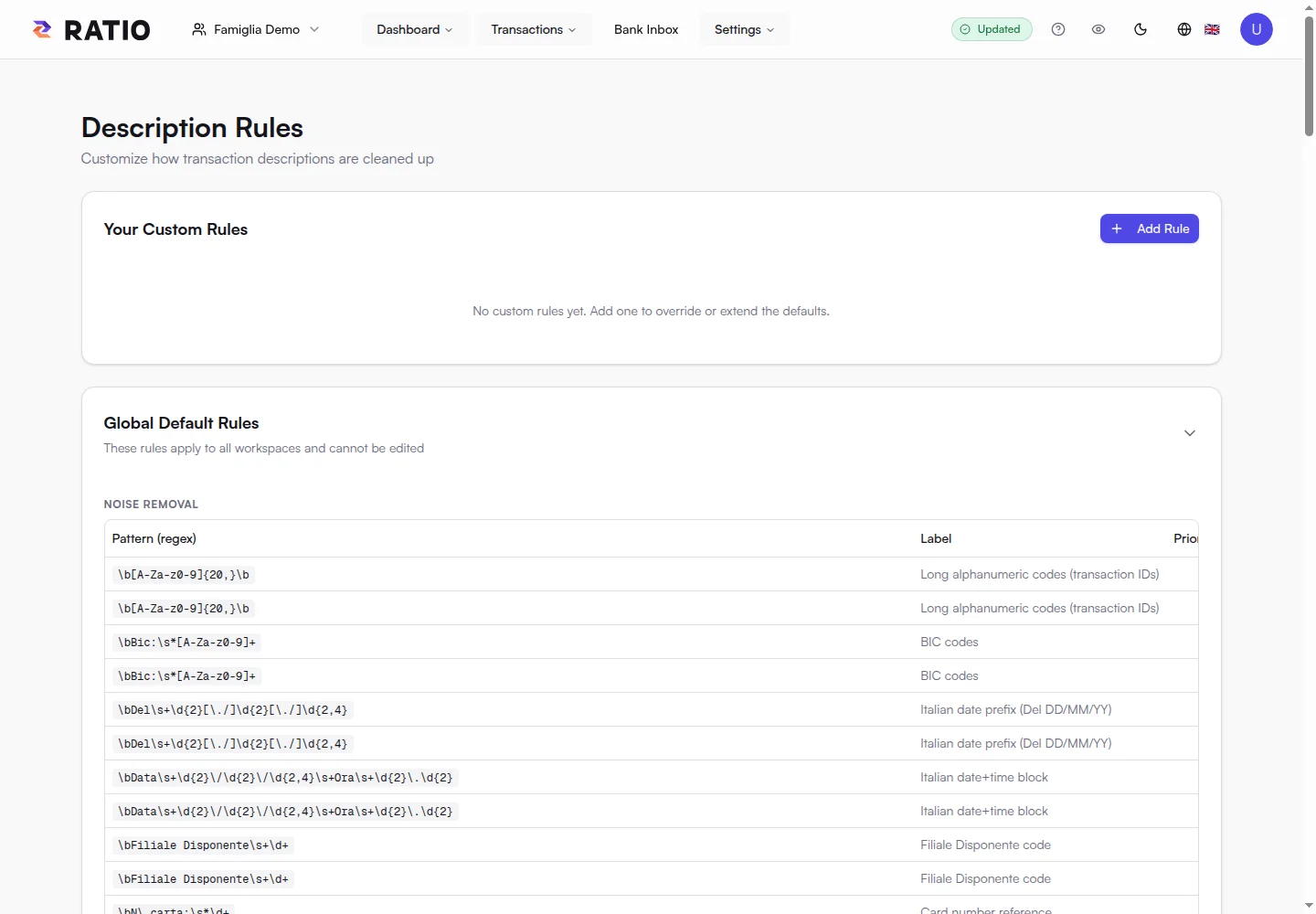
Start with a narrow filter and a few transactions. Review the result, then expand the scope. Description-cleanup rules have their own management screen: use them to remove noise and standardize wording; use categorization rules to classify transactions and assign fields.
Screenshots