RATIO USER MANUAL
Assets: connect transactions to a property or liability
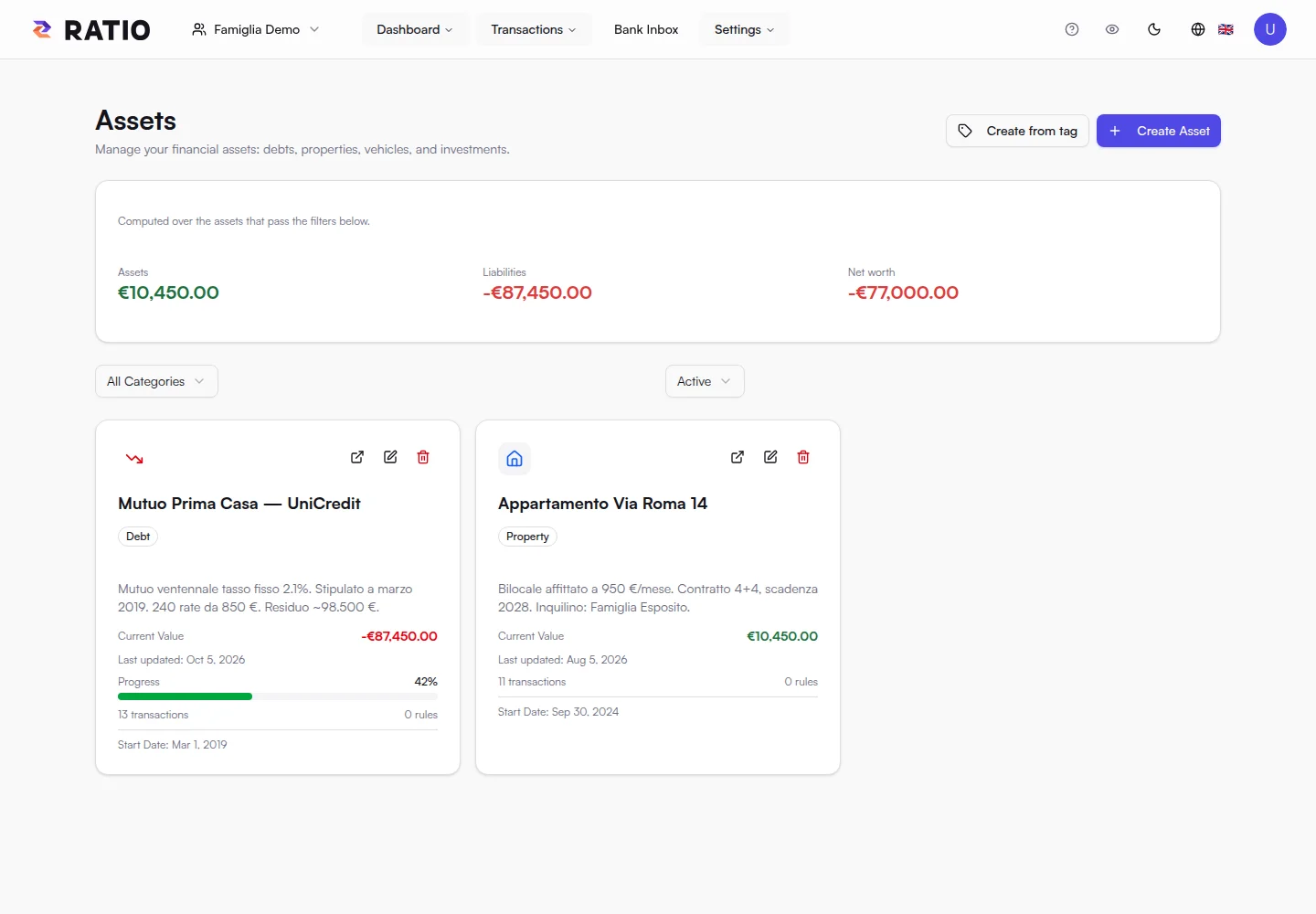
An asset groups a real financial item: a mortgage, property, vehicle, investment or other asset/project. Linked transactions help you understand its costs, proceeds and movement over time. An asset's type is separate from a transaction's category.
Create and find an asset
Open Assets in the right workspace and choose Create. Enter a name and type: Debt, Property, Vehicle, Investment or Other. Complete the values and dates relevant to that type. Avoid entering a payment as an opening value and then importing it again as a transaction without understanding how both affect the result.
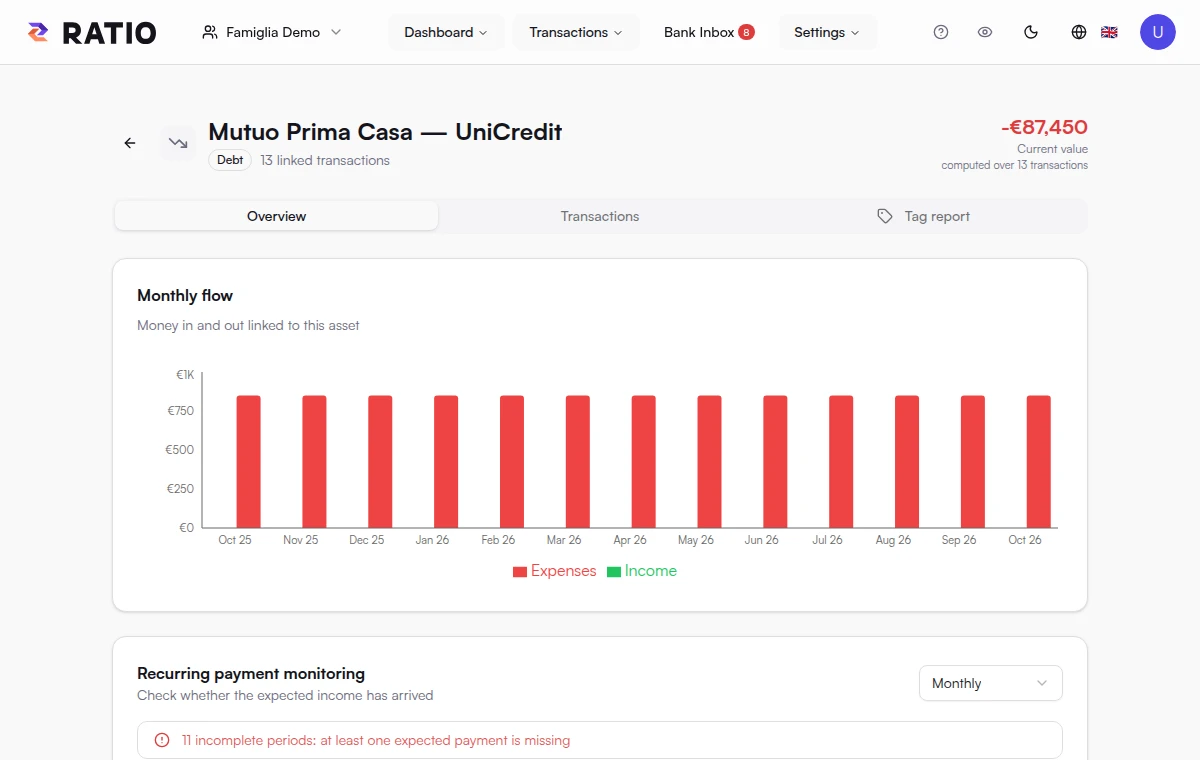
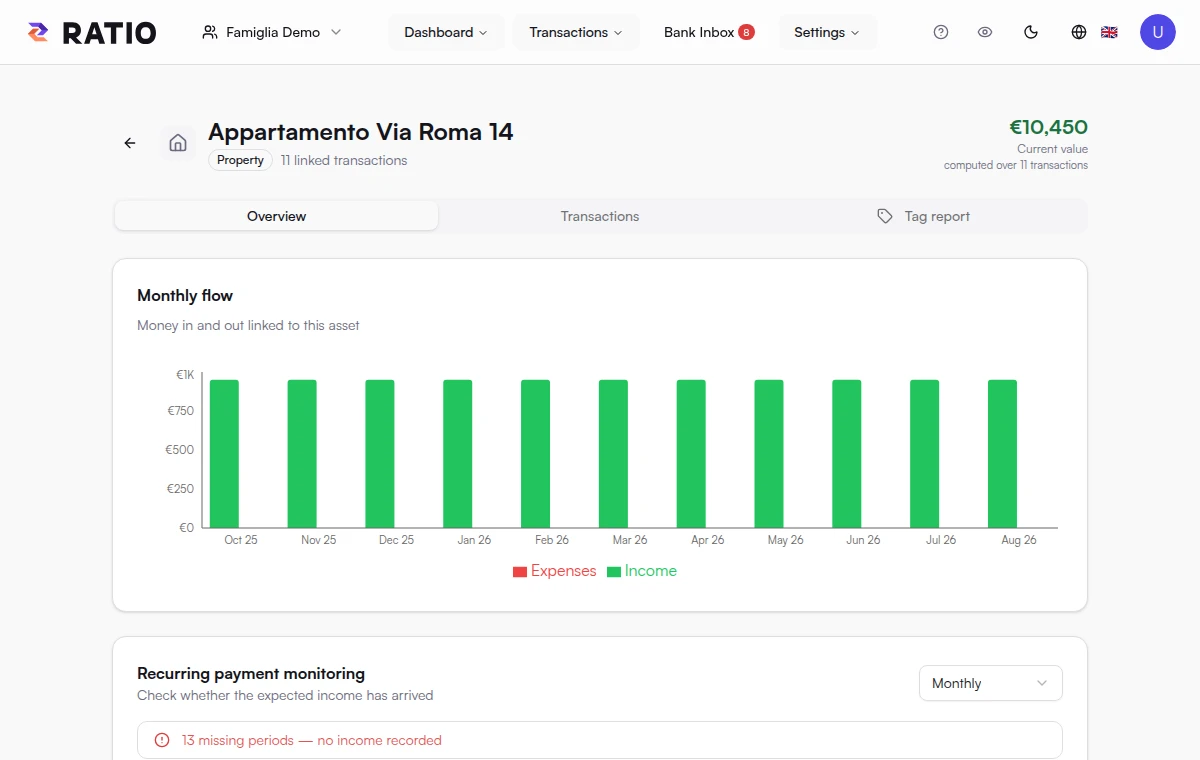
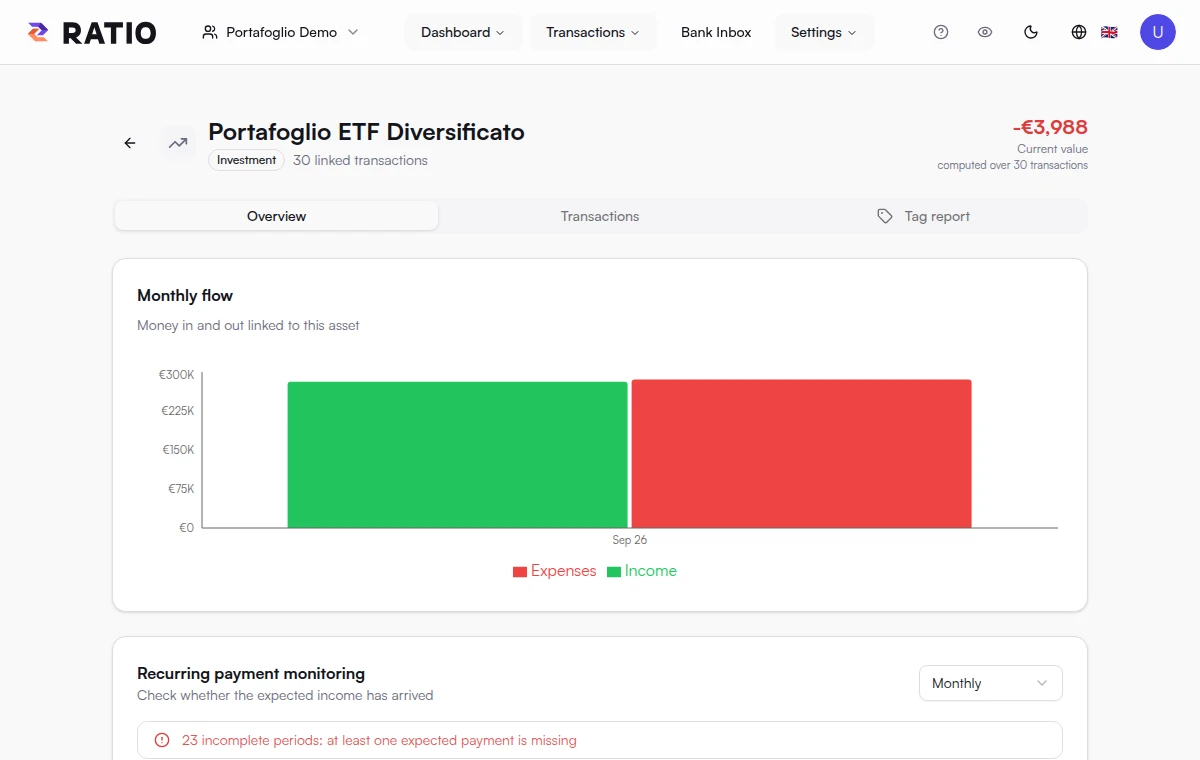
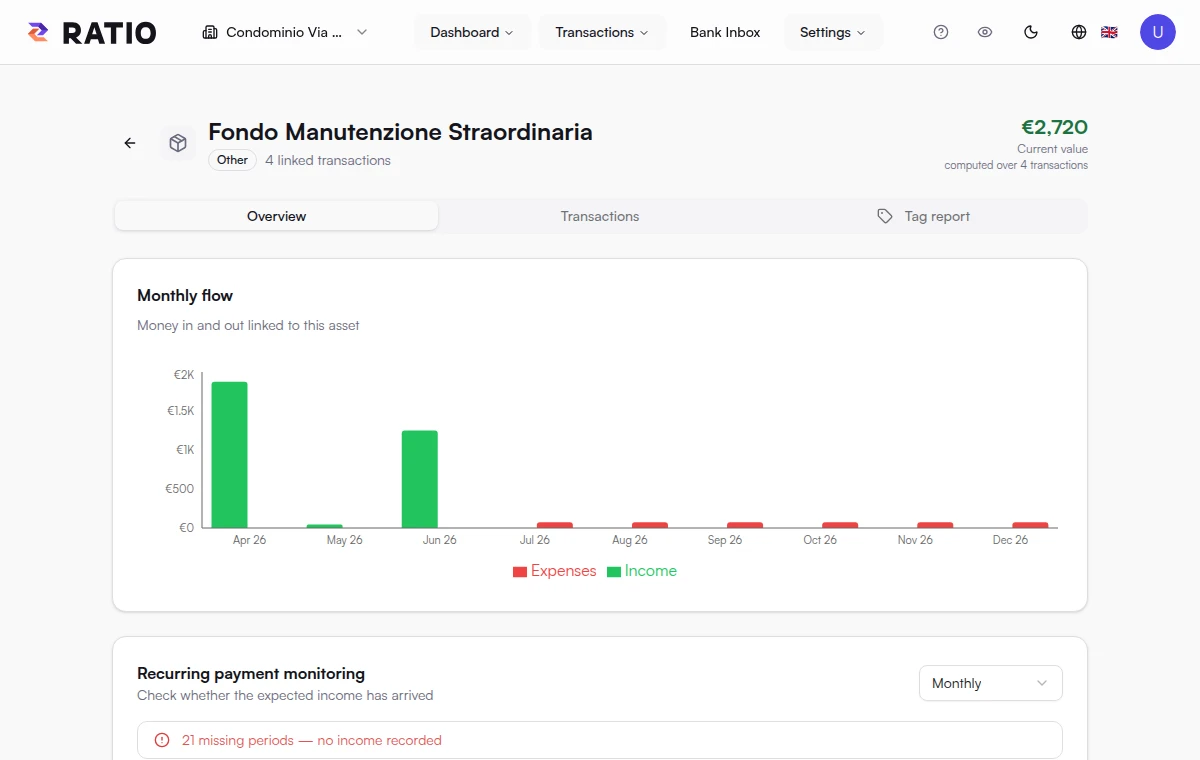
The list offers filters by type and status. Select the arrow at the top-right of an asset card to open its detail page. The page has Overview, Transactions and Tag Report tabs: Overview combines calculated value, monthly flows, payment monitoring and an income statement; Transactions lists linked movements; Tag Report filters workspace transactions by a tag. Sections and indicators vary by asset type and available data.
Link transactions
- Create the asset in the same workspace as the transactions.
- Open Transactions and use the asset control on a row or the Edit dialog.
- Select the asset and save. For several transactions, select rows and use the bulk action, checking which rows you selected.
- Open the asset again to verify its linked transactions and trend.
Linking does not duplicate or move a transaction. You can change or remove the link while keeping the transaction. A rule can assign the asset automatically to new transactions that match its conditions.
Values, trend and payback
The asset detail combines recorded values and linked flows according to the asset type. Cost, balance and market value are different measures: check each field's label. If a payback indicator is available, check which amounts feed it; it is not a guarantee of future returns.
If Ratio signals incomplete transaction coverage, treat the numbers as partial. Import missing records and check the links before comparing results with official documents.
Assets and tag reports
The tag report answers a different question from the linked-transactions list: it includes every transaction in the workspace with that tag, even if it is not linked to this asset. For example, an auto tag may include costs for a second vehicle.
The suggested tag may come from the tag used to create the asset, or the most common tag on its linked transactions. Check it before reading the report. Comparing the asset and tag views can help you find relevant transactions that are not linked yet; it does not automatically mean a link is wrong.
Screenshots