RATIO USER MANUAL
Filters: find the transactions you need
Filters narrow transactions in the active workspace. Use them to answer practical questions: how much did I spend on a trip, which items are uncategorized, or which payments belong to a project?
Search and quick filters
The Search transactions bar searches data available to the client. Enter a merchant or part of a description, then combine the search with other filters. Quick filters for This month, Last 30 days, Uncategorized and Expenses only make common searches faster. Select an active quick filter again to turn it off.
Sorting is separate: options such as newest transaction first change the order, not the result set. A filter never deletes or edits transactions.
Categories and facets
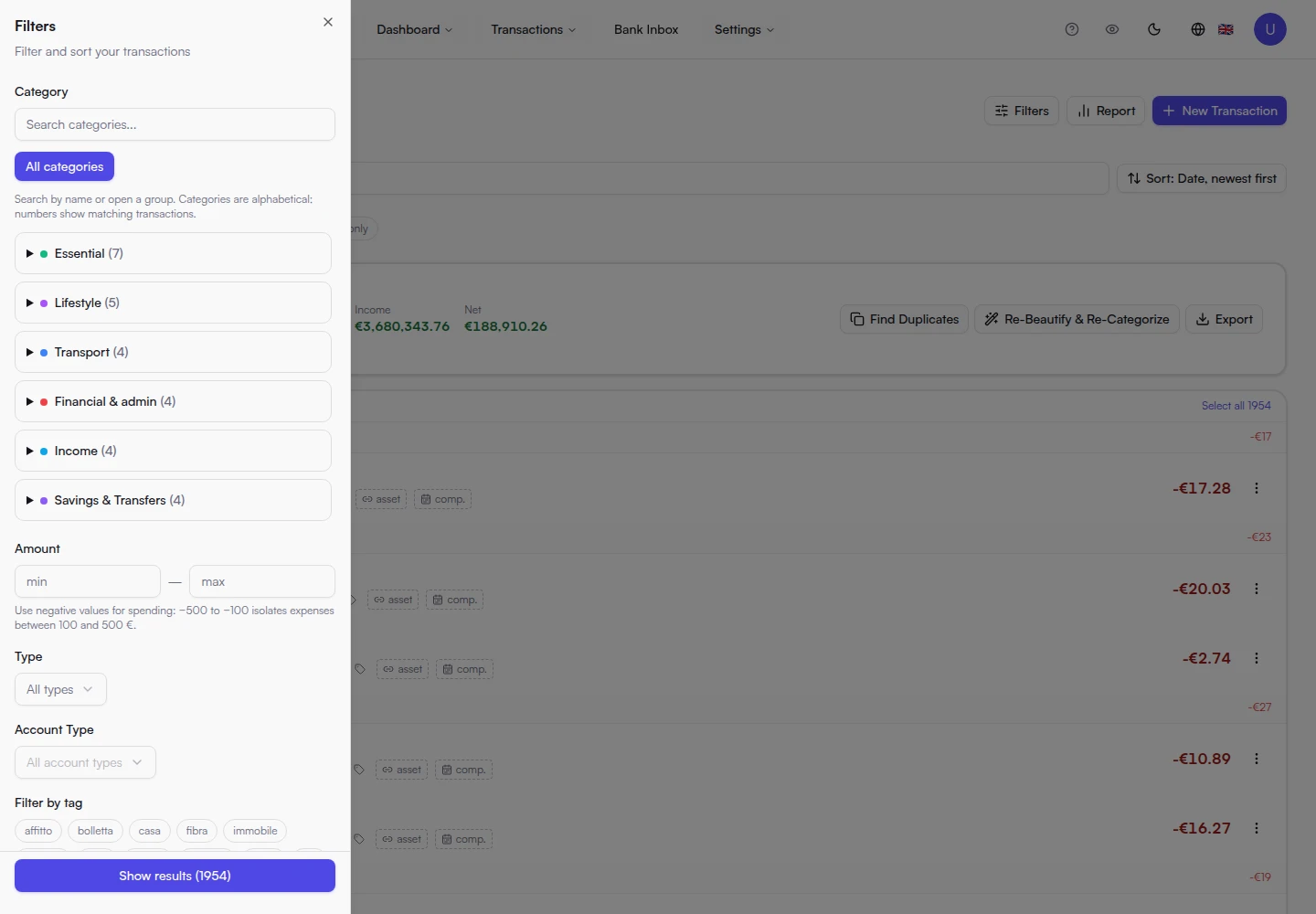
Open Filters. Search for a category name or expand a macro group. Categories are alphabetized in the selected language; the number beside a category indicates matching transactions within the available facet counts.
Selecting Sports and Padel means Sports OR Padel: it is a union of exact categories. Filtering by Sports does not automatically include child categories, even though a Sports budget does include Padel. Select both if you want both exact categories.
Selected categories remain visible at the top and can be removed individually, even when another filter reduces their count to zero. All categories clears only category selections. Historical categories remain available here even if you hid them in Profile selectors.
OR and AND for tags
Select the tags you need. OR returns transactions with at least one selected tag. AND requires every selected tag on the same transaction. For example, rome-trip OR family includes either context; rome-trip AND family returns transactions shared between both.
Dates, amounts and transaction types
Use the calendar to set dates, or choose a preset. Dates filter the transaction date. Use minimum and maximum to narrow amounts, Type for income/expenses and Account type to distinguish checking, credit-card and other accounts. Has accrual set finds transactions with an accrual period; it does not replace the date filter.
Combine, review and reset
Filter groups combine: a transaction must match the search and all selected conditions. If you see no results, remove one condition at a time. Active chips show the applied filters; the general reset clears the filter state.
The view reflects data synced and available under your plan's history limit. A missing result does not prove the encrypted history has no such transaction. Check your search, dates, tags and categories before creating a report. Reports use the filtered view, not every transaction in the workspace.
Screenshots