RATIO USER MANUAL
Reports: turn a search into a summary
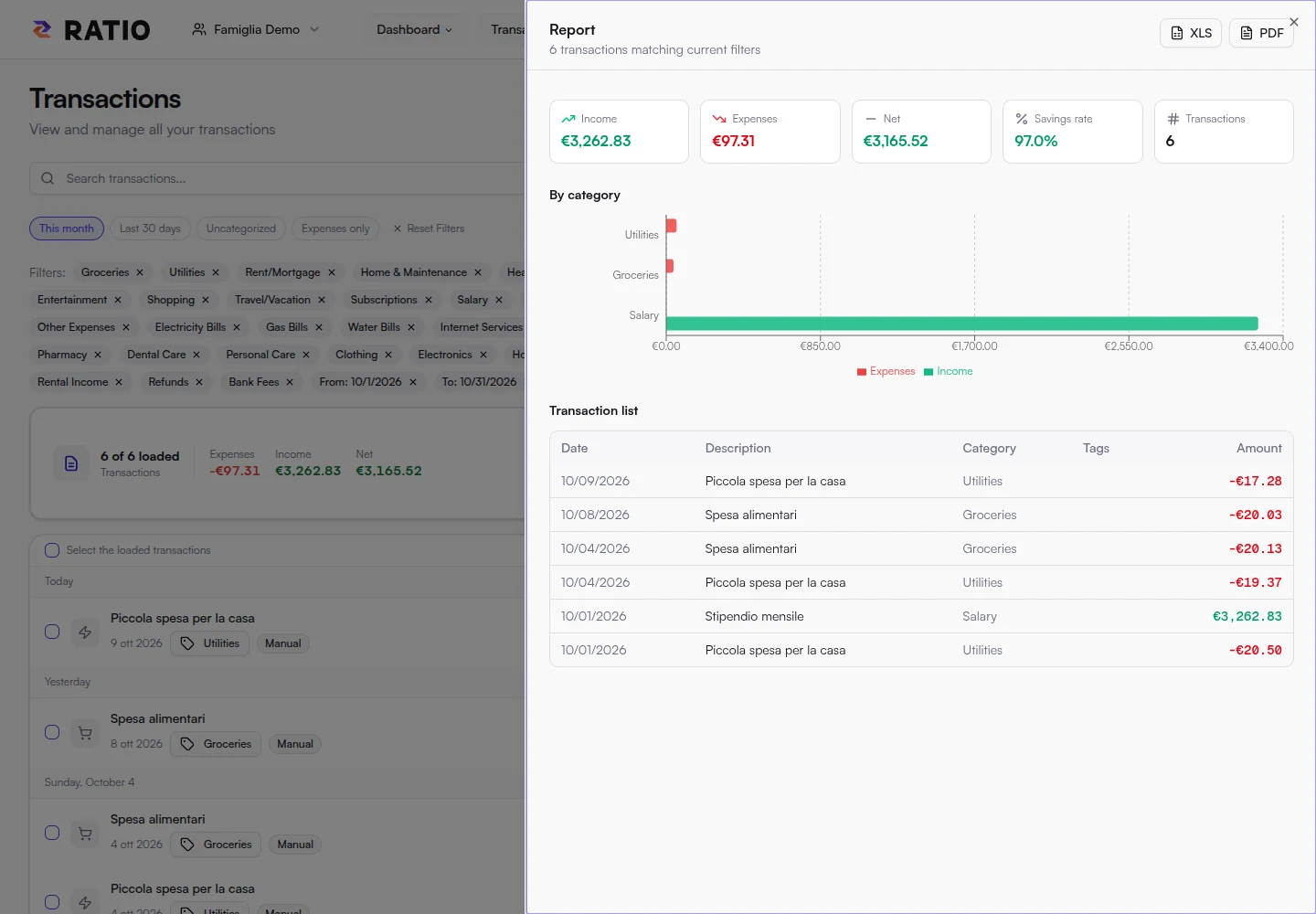
The Report opens from Transactions and uses the current search and filters. Use it to review a trip, project, group of categories or date range. It describes the selected transactions; it is different from the Statistics page.
Prepare and open a report
- Open Transactions in the right workspace.
- Set dates, categories, tags and search. To review everyday spending, select expense categories and leave out investments and transfers.
- Select Report. Check the transaction count shown in the panel: the report loads up to 10,000 matches, not just rows currently loaded in the list.
- To change filters, close the report, adjust the list and open the report again. It captures the filters when opened.
Understand the numbers
Income sums positive amounts, Expenses sums negative amounts, and Net is the difference. The savings rate compares net with positive income when available. Do not assume these equal Statistics: its spending measures can exclude transfers and investment activity.
The chart groups by category when no tags are active; when tags are active it groups by tag. Groups may overlap because one transaction can have several tags. The top-level total counts each transaction once, but summing tag bars can count it multiple times.
The report's monthly trend groups by transaction date, not accrual allocation. A €300 quarterly bill paid in April appears in April in this chart, even if another view spreads its accrual over January through March.
Export to XLS or PDF
XLS downloads an Excel workbook with a summary, breakdowns and transactions. PDF exports a report with charts. Wait for the report to finish loading, and check its filters before exporting.
Exported files contain readable financial information. Store and share them carefully. The report presents a currency label; it does not automatically convert every amount into a common currency. Avoid treating mixed-currency totals as comparable.
Screenshots