RATIO USER MANUAL
Transactions: organize and understand your activity
Transactions is the everyday workspace for reviewing income and expenses, correcting descriptions, assigning categories, adding tags and linking movements to assets. Changes are encrypted before saving; readable transaction details remain in the client.
Read the list
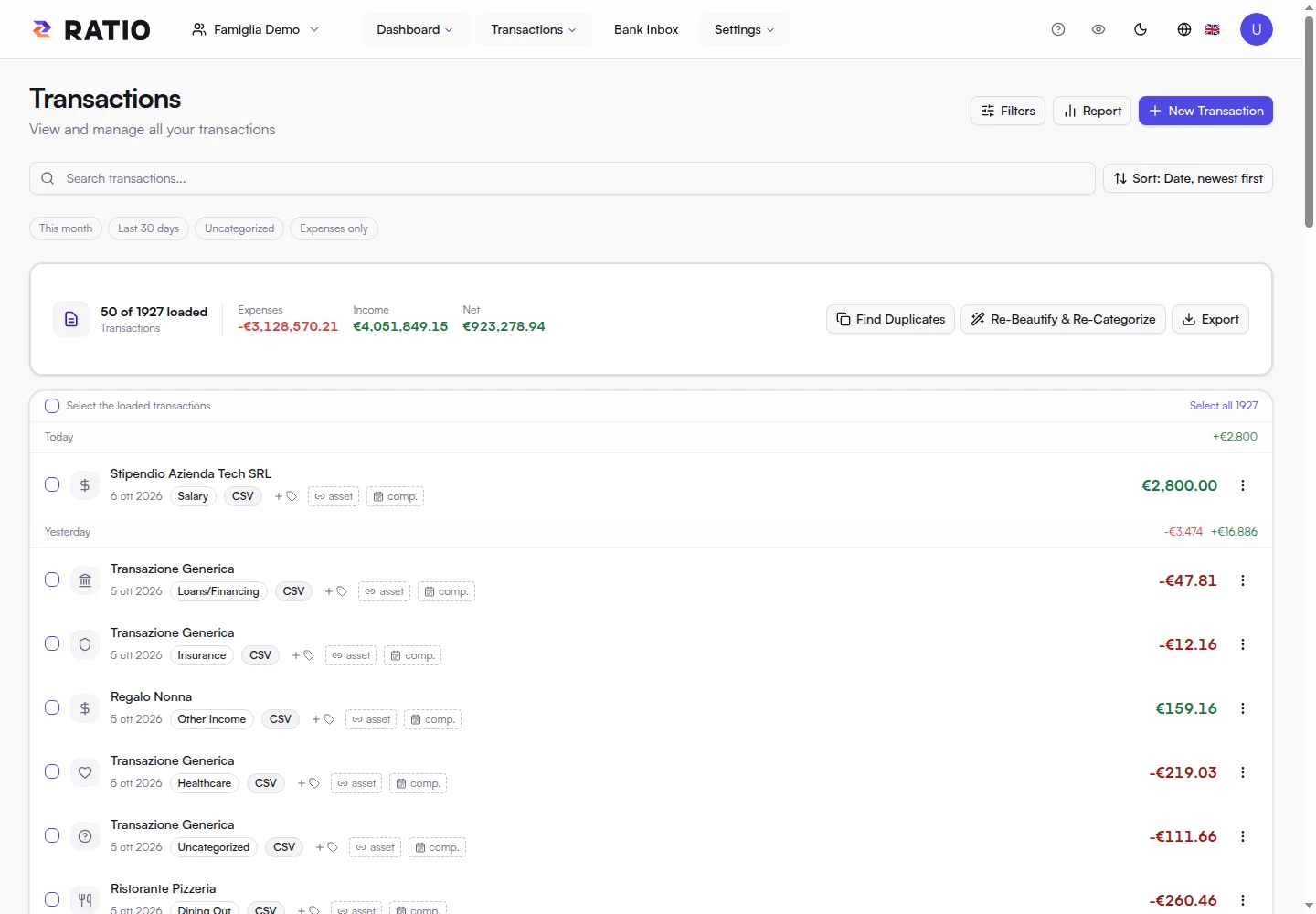
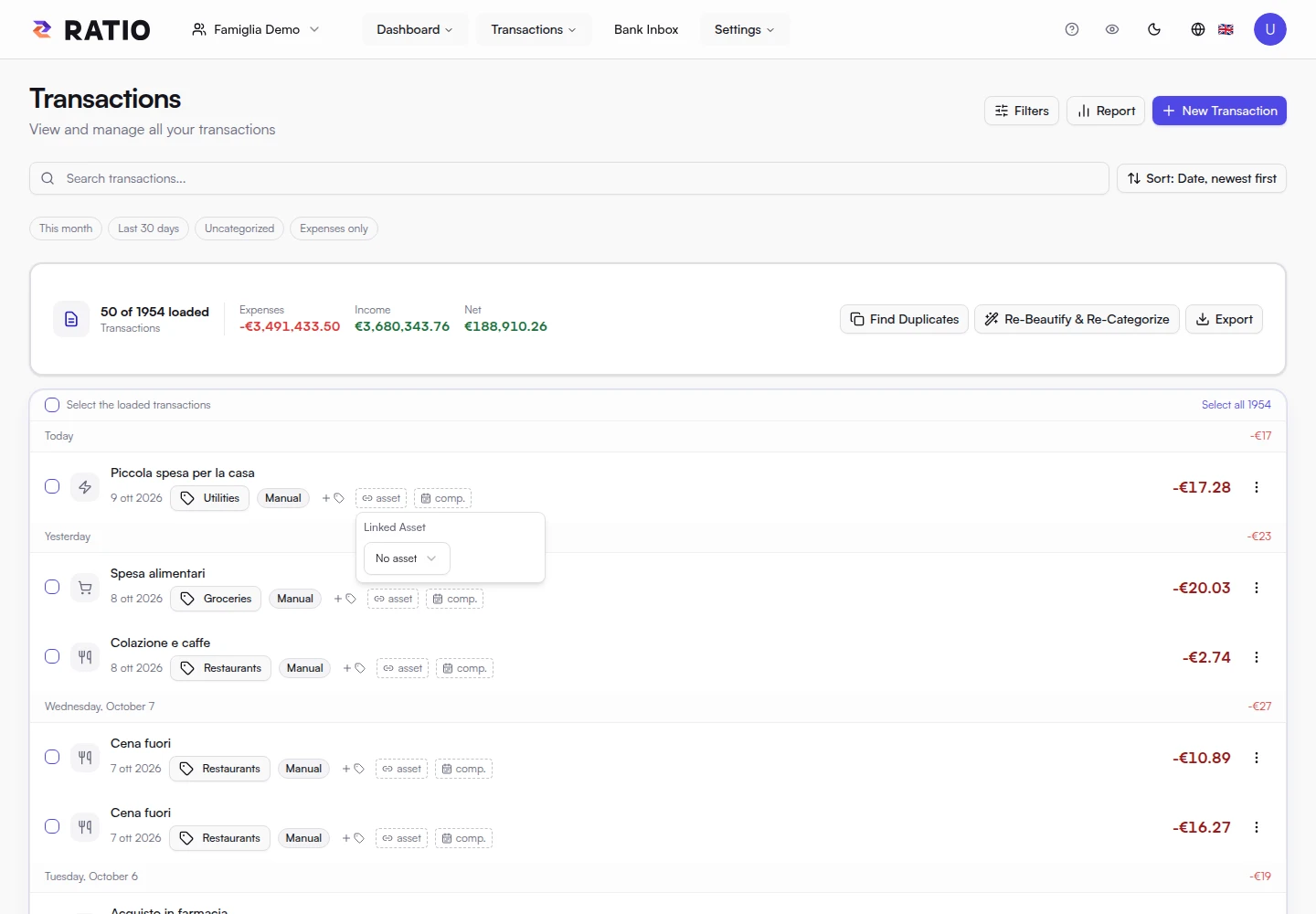
Choose the correct workspace first. Each row shows a merchant or description, date, category, source and amount. The summary reports income, expenses and net for the results; the counter distinguishes loaded rows from matching transactions. Scrolling loads more rows, so do not mistake one loaded page for the full history.
Open a transaction or its row menu to view other fields. A negative amount is an expense; a positive amount is income. Categories describe what a transaction means: a transfer between your own accounts is different from an expense even when its amount is negative.
Create and edit transactions
- Select New transaction.
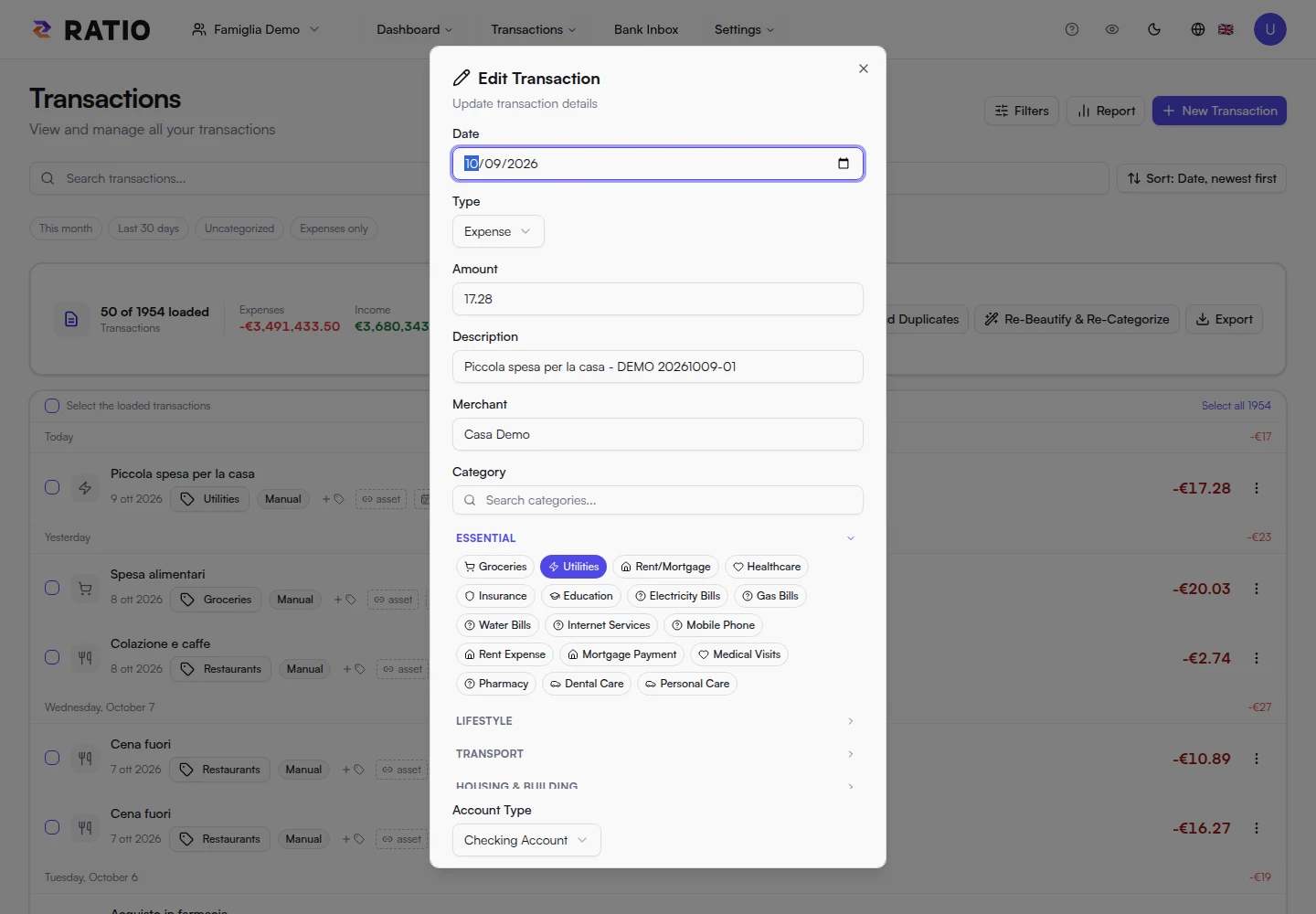
- Choose a date and type (Expense or Income), then enter a positive amount. Ratio applies the sign based on the type.
- Enter a description, optionally a merchant and category, then save.
- To correct a transaction, choose Edit from its row menu and review the fields before saving.
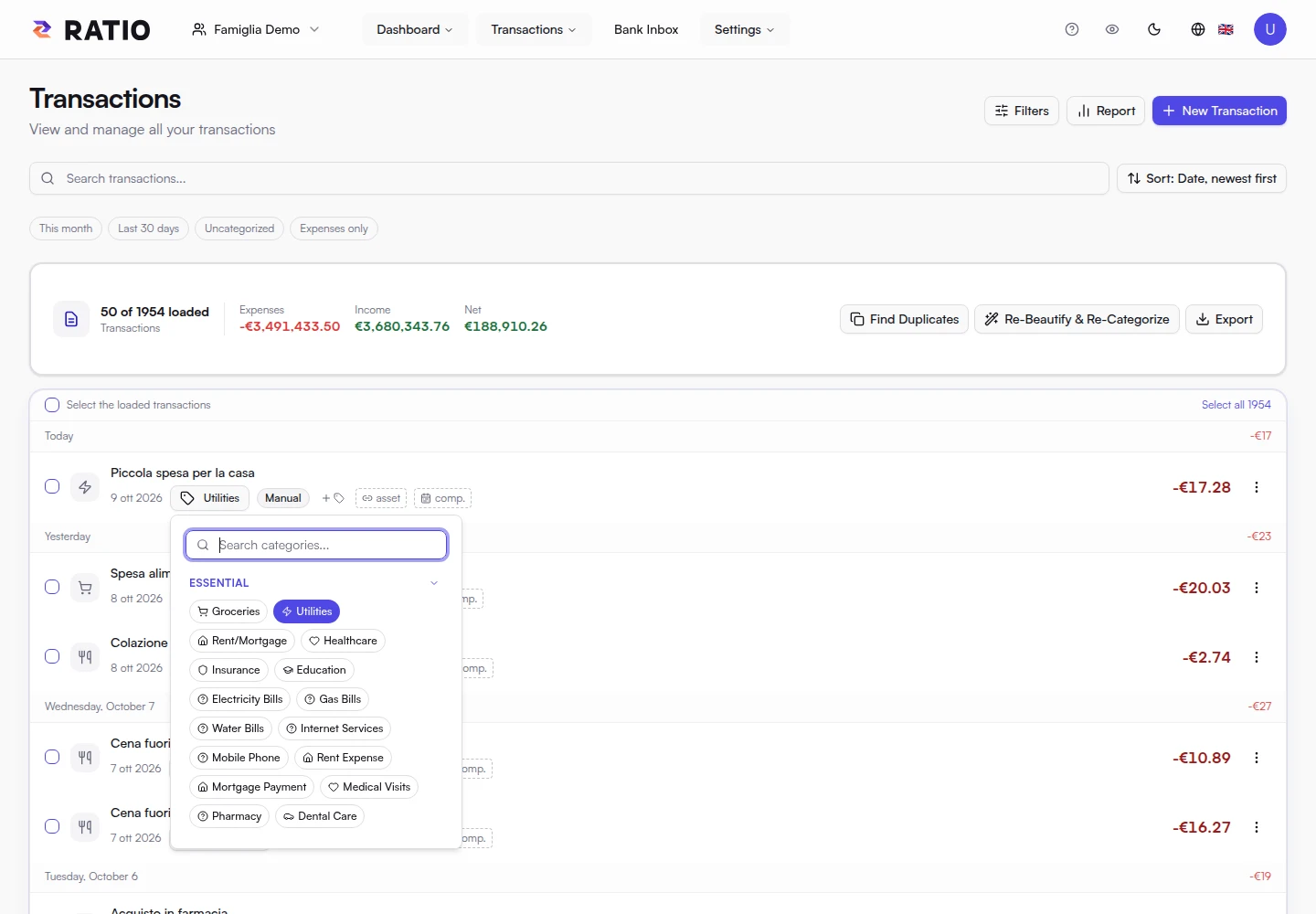
To change only the category, select the category button on the row. Search by name or open a group; favorites have their own section. The row updates without jumping back to the start of the list. If saving fails, the previous category is restored.
Tags: labels across categories
A category classifies a transaction; tags describe projects, people or contexts. A restaurant bill can have the Restaurants category and tags rome-trip and family. A transaction can have more than one tag.
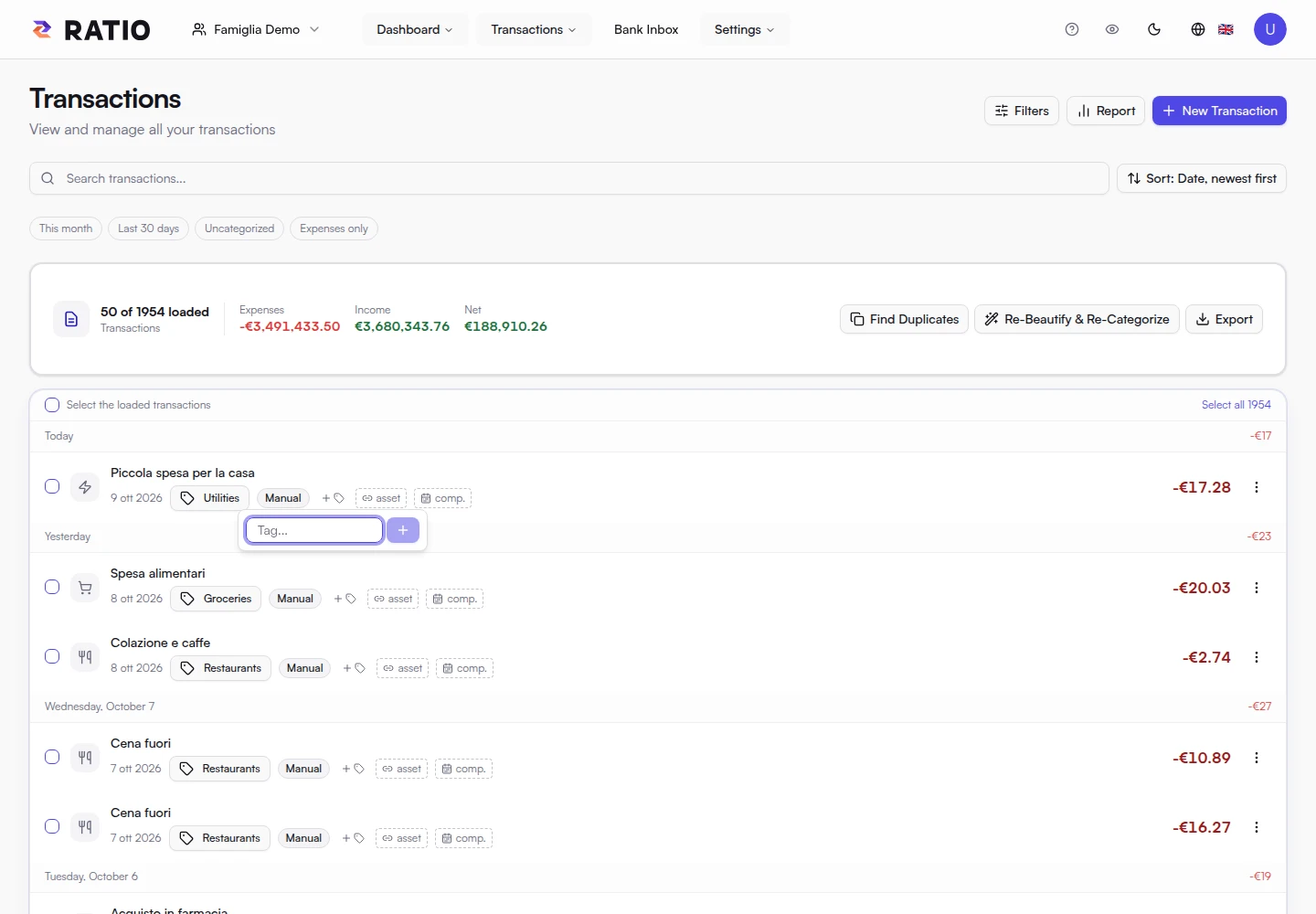
Use the row's tag control to add an existing or new label. Remove a tag to delete just that label, not its transaction. Keep names consistent: holiday-2026 and holidays2026 create separate groups.
Tag filters support OR (at least one tag) and AND (all tags). In a report, a transaction with two tags can appear in both groups. Adding tag groups can therefore count the amount twice, while the overall total counts the transaction once.
Link to an asset
An asset link connects a transaction to a specific property, debt or project. A payment can link to a mortgage; maintenance, insurance and fuel can link to a vehicle. Tags can describe a broader context, while the asset link identifies the item associated with the transaction.
- Create the asset first in Assets in the same workspace.
- Use the asset control on the transaction row or choose the asset in Edit.
- Save, then open the asset detail to check its linked transactions.
You can change or remove a link without deleting the transaction. A rule can also assign an asset to matching new transactions.
Accrual: assign an expense to its accounting period
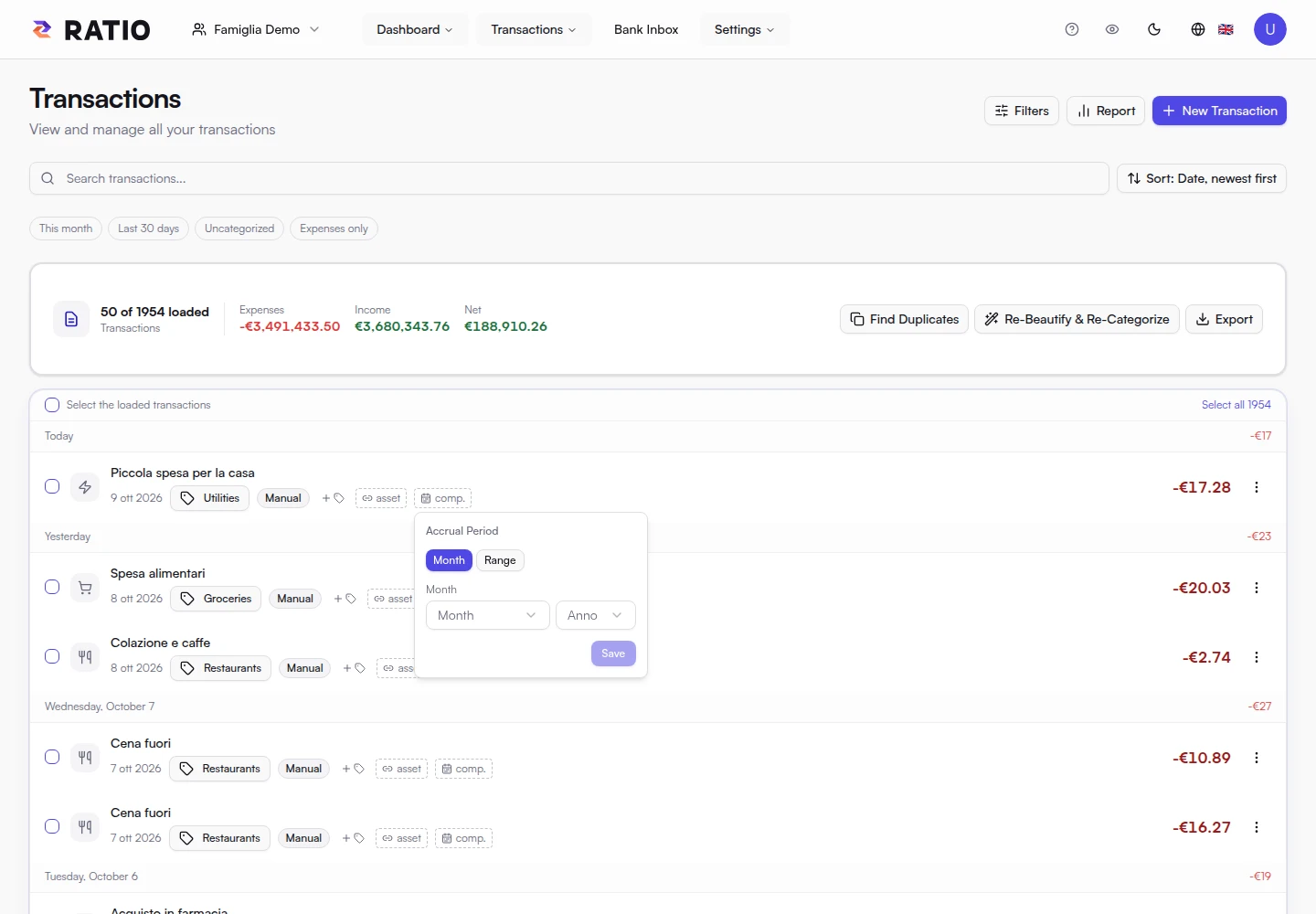
The transaction date is when you paid. Accrual sets the month or months to which an amount belongs. For example, a €300 quarterly service bill can accrue from January to March. Ratio allocates €100 to each month without creating extra transactions or changing the original payment.
Select the row's accrual control or edit the transaction. Choose a single month or a date range, then save. Without accrual dates, the transaction date determines its month.
Accrual affects analyses that allocate amounts by month. The transaction list and date filters still use the transaction date: a bill paid in April does not appear in a January date filter just because its accrual begins in January. The transaction report's monthly trend groups by transaction date.
Bulk edits and review
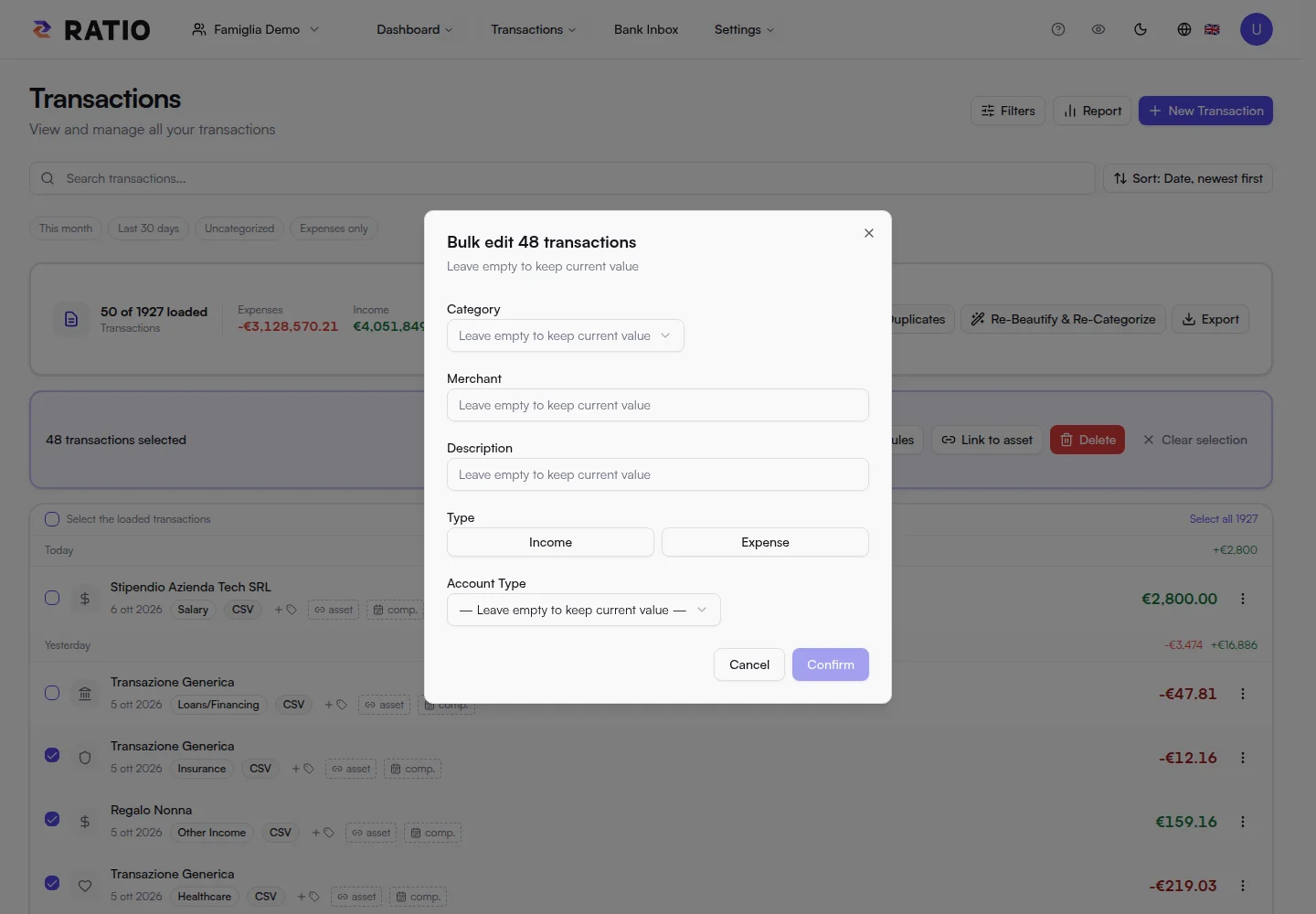
Select the checkboxes for the transactions to edit. Distinguish Select loaded transactions from selecting all results, which can include rows you have not viewed. Open Edit fields and check the scope before saving. Try a small group when testing a new classification.
Find duplicates can help after repeated imports. Review the suggested matches before deleting: two legitimate transactions can share an amount. Re-Beautify & Re-Categorization reapplies rules to the chosen scope; check whether overwrite existing categories is on before confirming.
Export
Select Export and choose the scope requested by the dialog. Ratio exports preserve readable fields, metadata and stable IDs for custom categories. Downloaded files contain readable financial information: store them like a bank statement. For a graphical summary, use Report.
Screenshots